k9s
- Get it
- See installation instructions
- Group
- CLI & TUI
- App
- k9scli.io
- Problem?
- Report an issue
- Flavors
Install
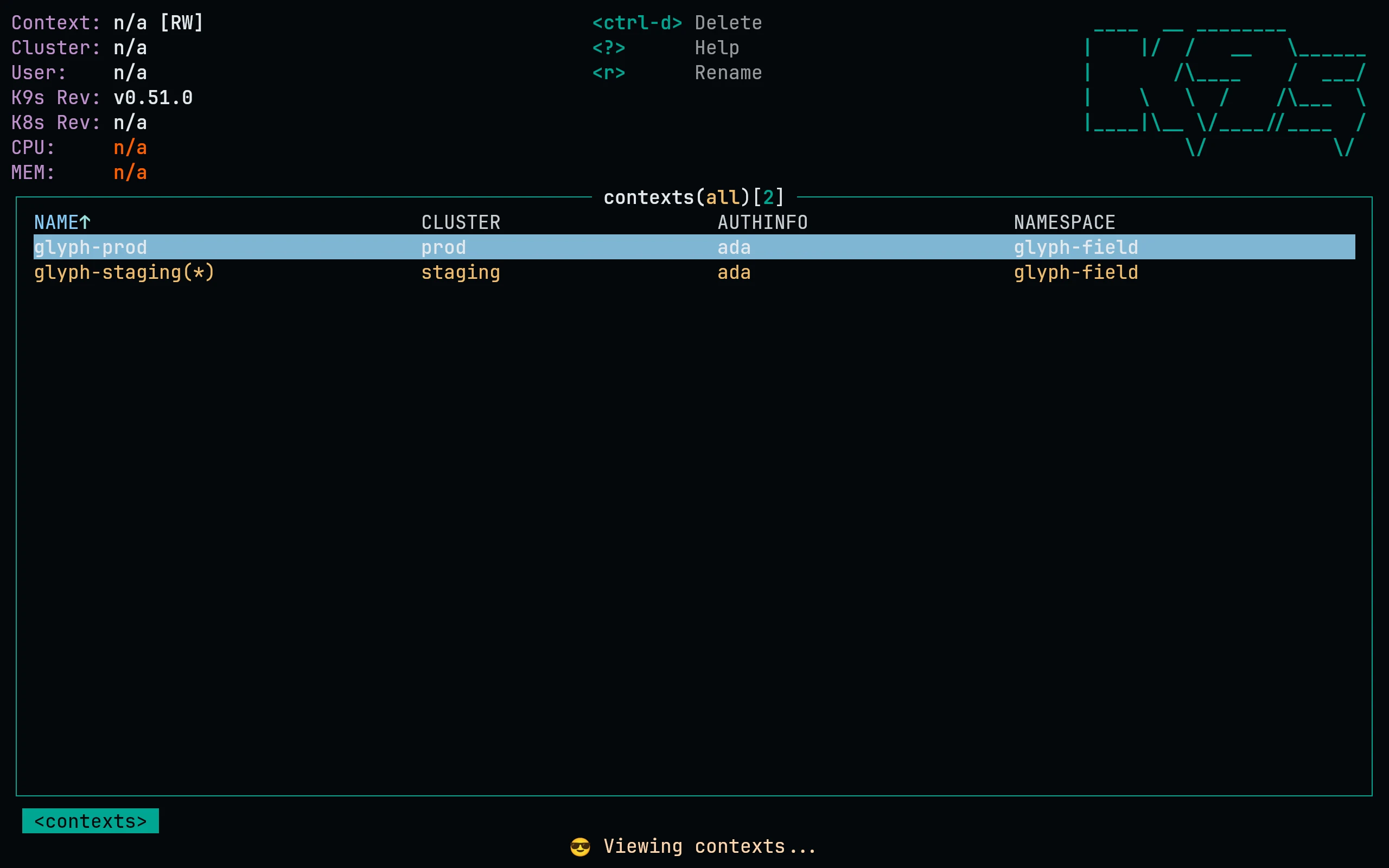
Download the skins, then select one in config.yaml:
curl -fsSL --create-dirs --output-dir "${XDG_CONFIG_HOME:-$HOME/.config}/k9s/skins" -O "https://raw.githubusercontent.com/living-code-theme/k9s/main/living-code-{night,frost,paper,signal}.yaml"k9s:
ui:
skin: living-code-nightOn macOS, where XDG_CONFIG_HOME is usually unset, k9s keeps its config in ~/Library/Application Support/k9s, so use this line instead (and edit config.yaml there):
curl -fsSL --create-dirs --output-dir ~/Library/Application\ Support/k9s/skins -O "https://raw.githubusercontent.com/living-code-theme/k9s/main/living-code-{night,frost,paper,signal}.yaml"k9s info prints the directory your install uses.
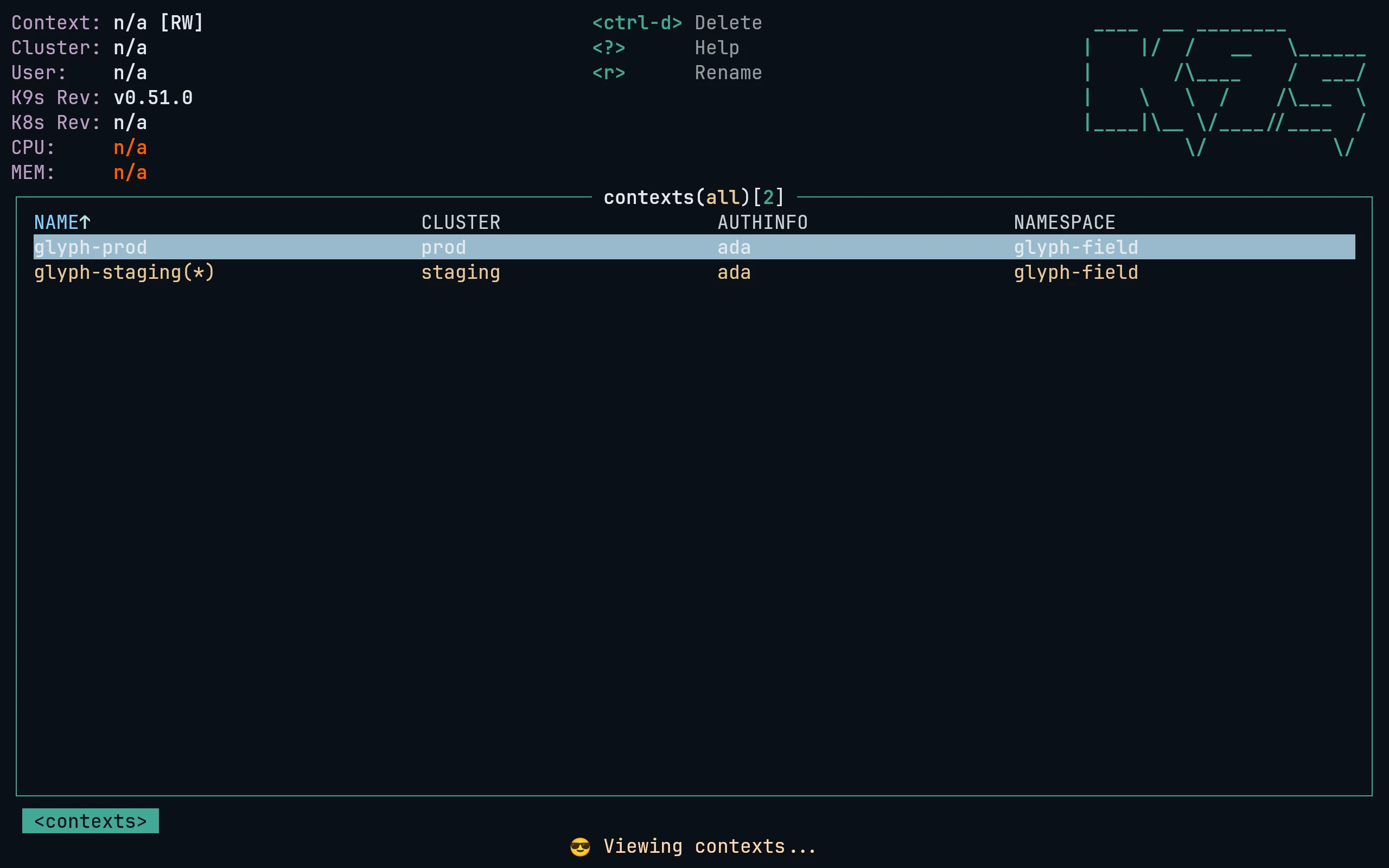
Download the skins, then select one in config.yaml:
curl -fsSL --create-dirs --output-dir "${XDG_CONFIG_HOME:-$HOME/.config}/k9s/skins" -O "https://raw.githubusercontent.com/living-code-theme/k9s/main/living-code-{night,frost,paper,signal}.yaml"k9s:
ui:
skin: living-code-frostOn macOS, where XDG_CONFIG_HOME is usually unset, k9s keeps its config in ~/Library/Application Support/k9s, so use this line instead (and edit config.yaml there):
curl -fsSL --create-dirs --output-dir ~/Library/Application\ Support/k9s/skins -O "https://raw.githubusercontent.com/living-code-theme/k9s/main/living-code-{night,frost,paper,signal}.yaml"k9s info prints the directory your install uses.
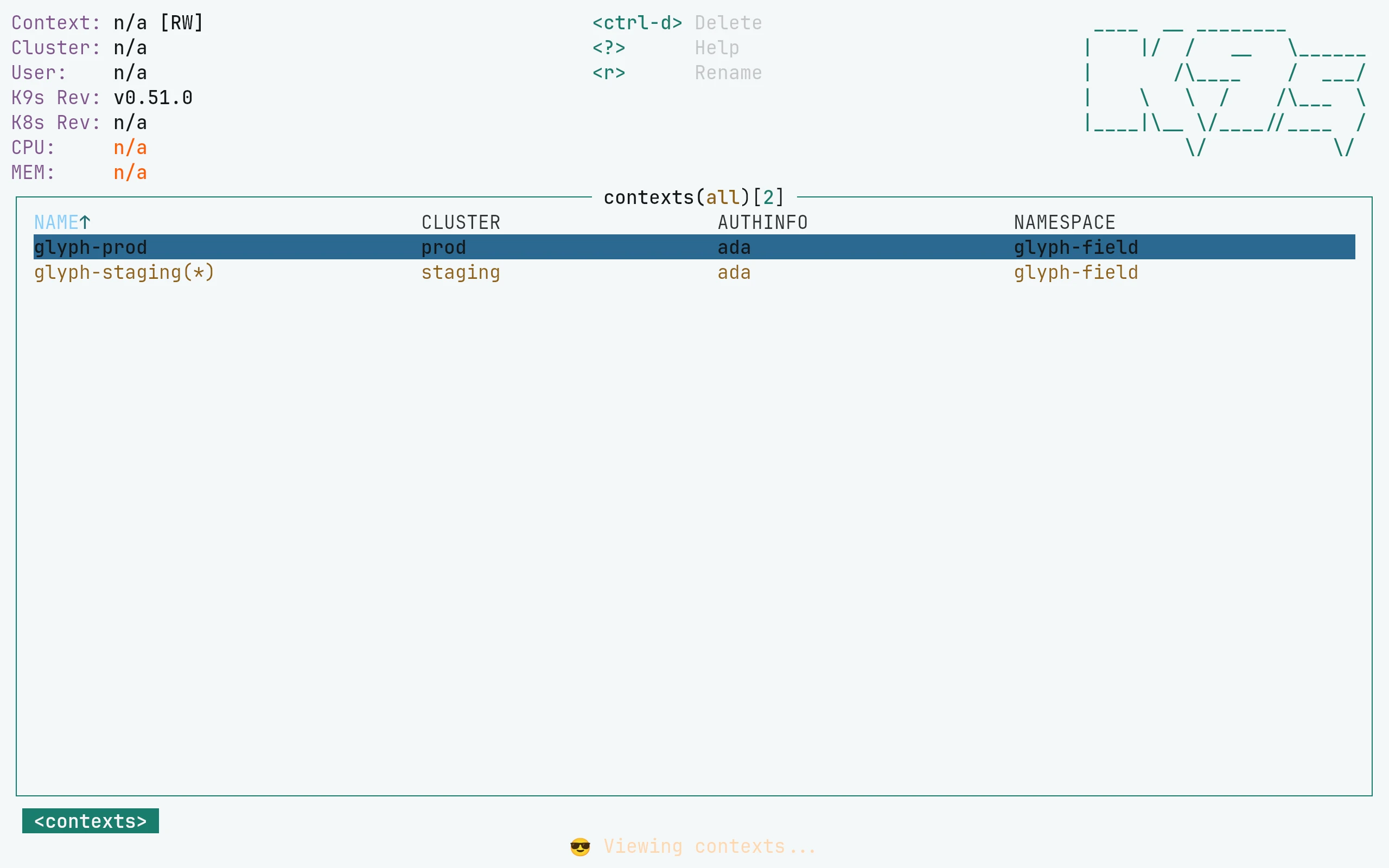
Download the skins, then select one in config.yaml:
curl -fsSL --create-dirs --output-dir "${XDG_CONFIG_HOME:-$HOME/.config}/k9s/skins" -O "https://raw.githubusercontent.com/living-code-theme/k9s/main/living-code-{night,frost,paper,signal}.yaml"k9s:
ui:
skin: living-code-paperOn macOS, where XDG_CONFIG_HOME is usually unset, k9s keeps its config in ~/Library/Application Support/k9s, so use this line instead (and edit config.yaml there):
curl -fsSL --create-dirs --output-dir ~/Library/Application\ Support/k9s/skins -O "https://raw.githubusercontent.com/living-code-theme/k9s/main/living-code-{night,frost,paper,signal}.yaml"k9s info prints the directory your install uses.
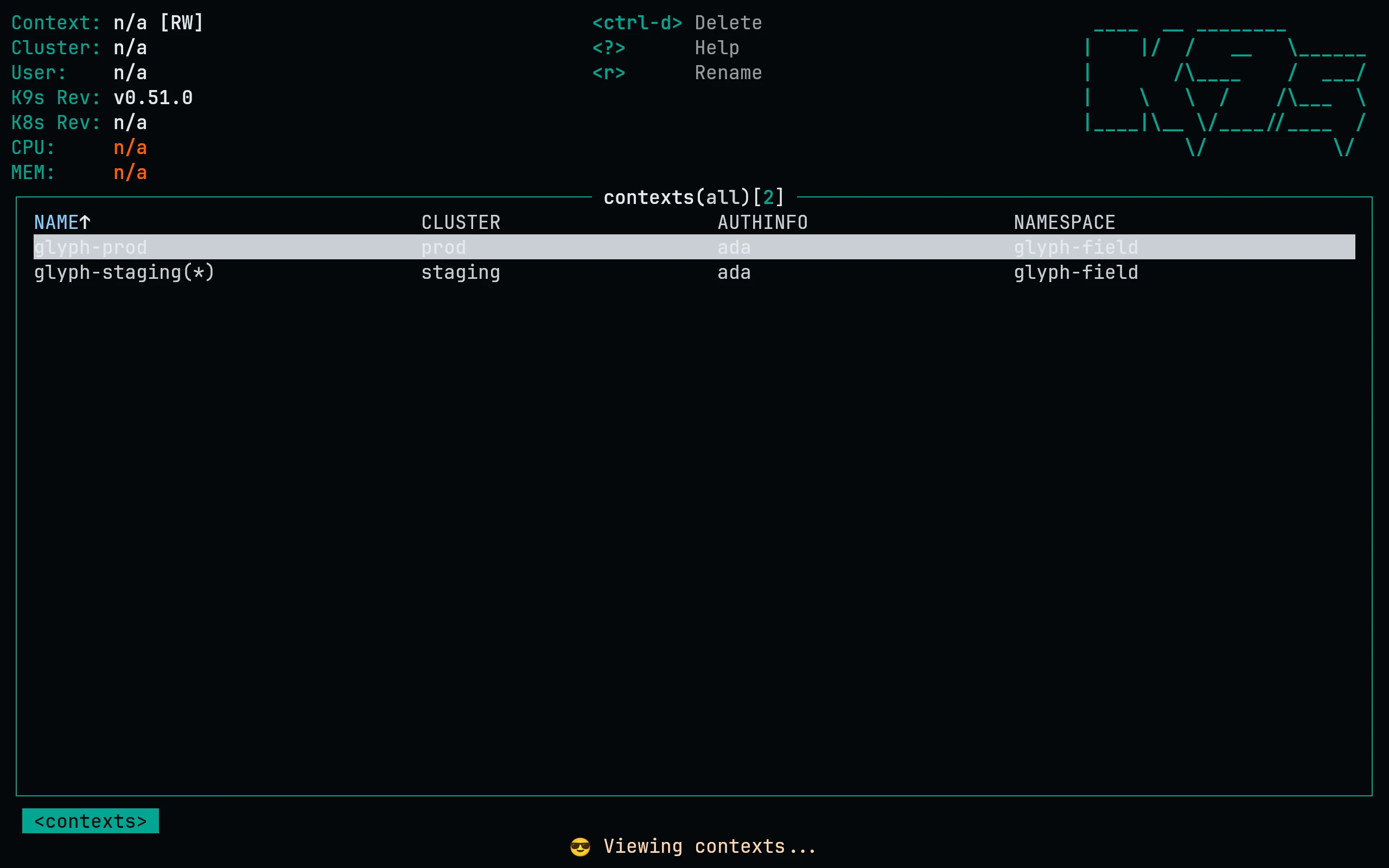
Download the skins, then select one in config.yaml:
curl -fsSL --create-dirs --output-dir "${XDG_CONFIG_HOME:-$HOME/.config}/k9s/skins" -O "https://raw.githubusercontent.com/living-code-theme/k9s/main/living-code-{night,frost,paper,signal}.yaml"k9s:
ui:
skin: living-code-signalOn macOS, where XDG_CONFIG_HOME is usually unset, k9s keeps its config in ~/Library/Application Support/k9s, so use this line instead (and edit config.yaml there):
curl -fsSL --create-dirs --output-dir ~/Library/Application\ Support/k9s/skins -O "https://raw.githubusercontent.com/living-code-theme/k9s/main/living-code-{night,frost,paper,signal}.yaml"k9s info prints the directory your install uses.
Details
Configuration
See k9s's documentation for application settings and reload behavior. The activation instructions above identify each supported flavor; keep your other application configuration.
Compatibility
This port supplies theme files for k9s, not the application itself. Install the application separately and follow the installation instructions for its supported configuration format.