Install
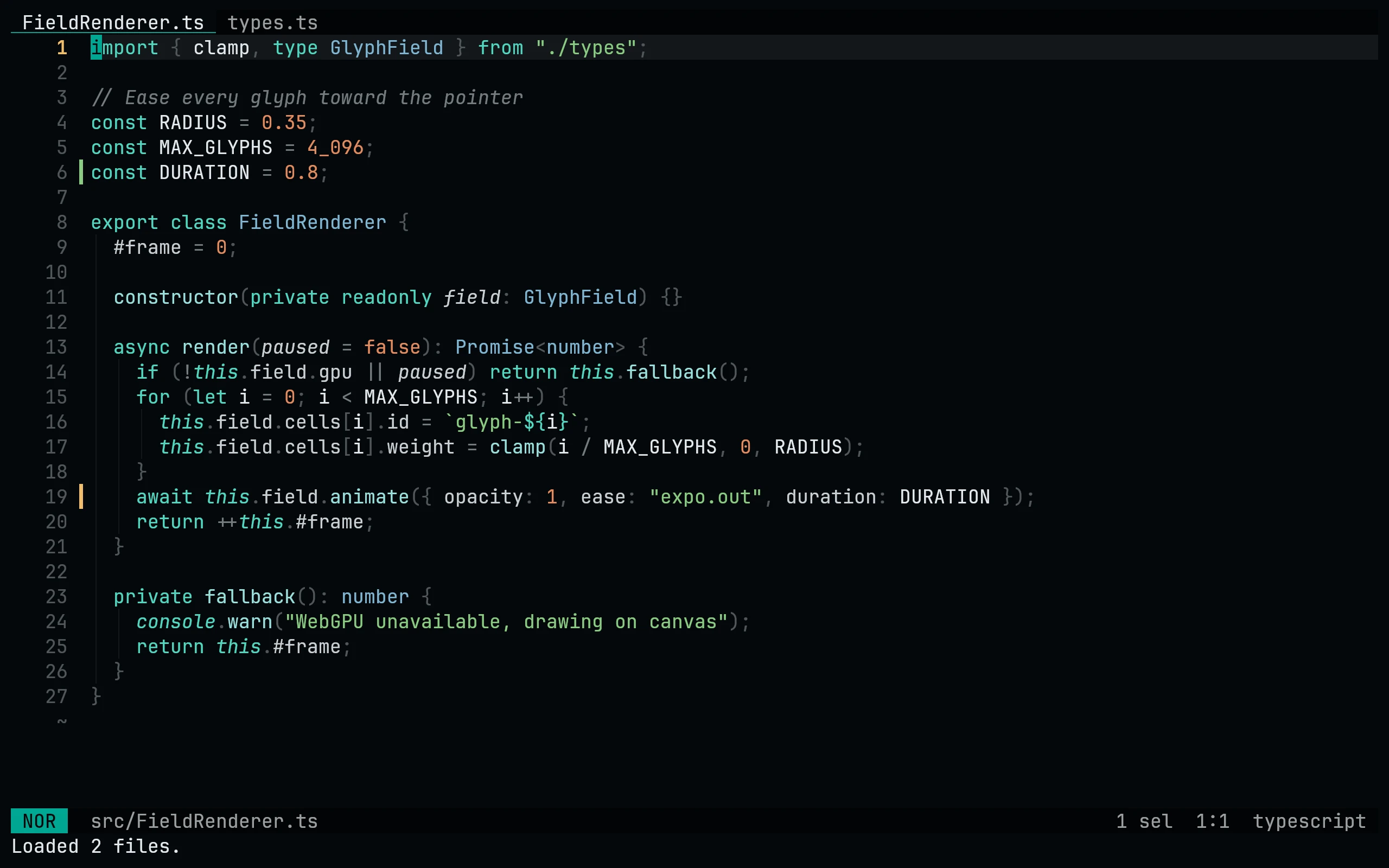
flavor=night
curl -fsSL --create-dirs -o "${XDG_CONFIG_HOME:-$HOME/.config}/helix/themes/living-code-$flavor.toml" "https://raw.githubusercontent.com/living-code-theme/helix/main/living-code-$flavor.toml"Then set the theme in config.toml:
theme = "living-code-night"On Windows the folder is %AppData%\helix\themes.
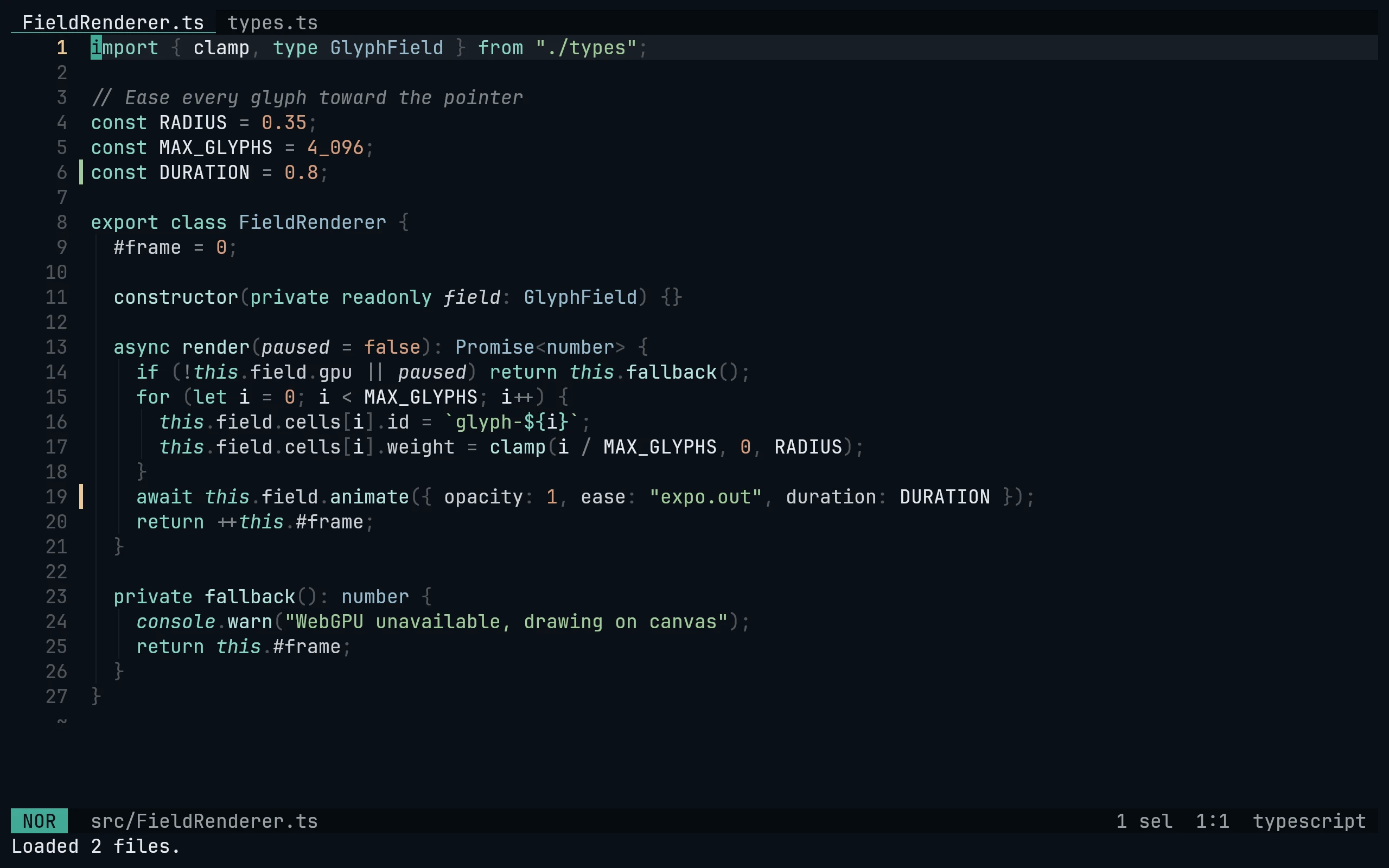
flavor=frost
curl -fsSL --create-dirs -o "${XDG_CONFIG_HOME:-$HOME/.config}/helix/themes/living-code-$flavor.toml" "https://raw.githubusercontent.com/living-code-theme/helix/main/living-code-$flavor.toml"Then set the theme in config.toml:
theme = "living-code-frost"On Windows the folder is %AppData%\helix\themes.
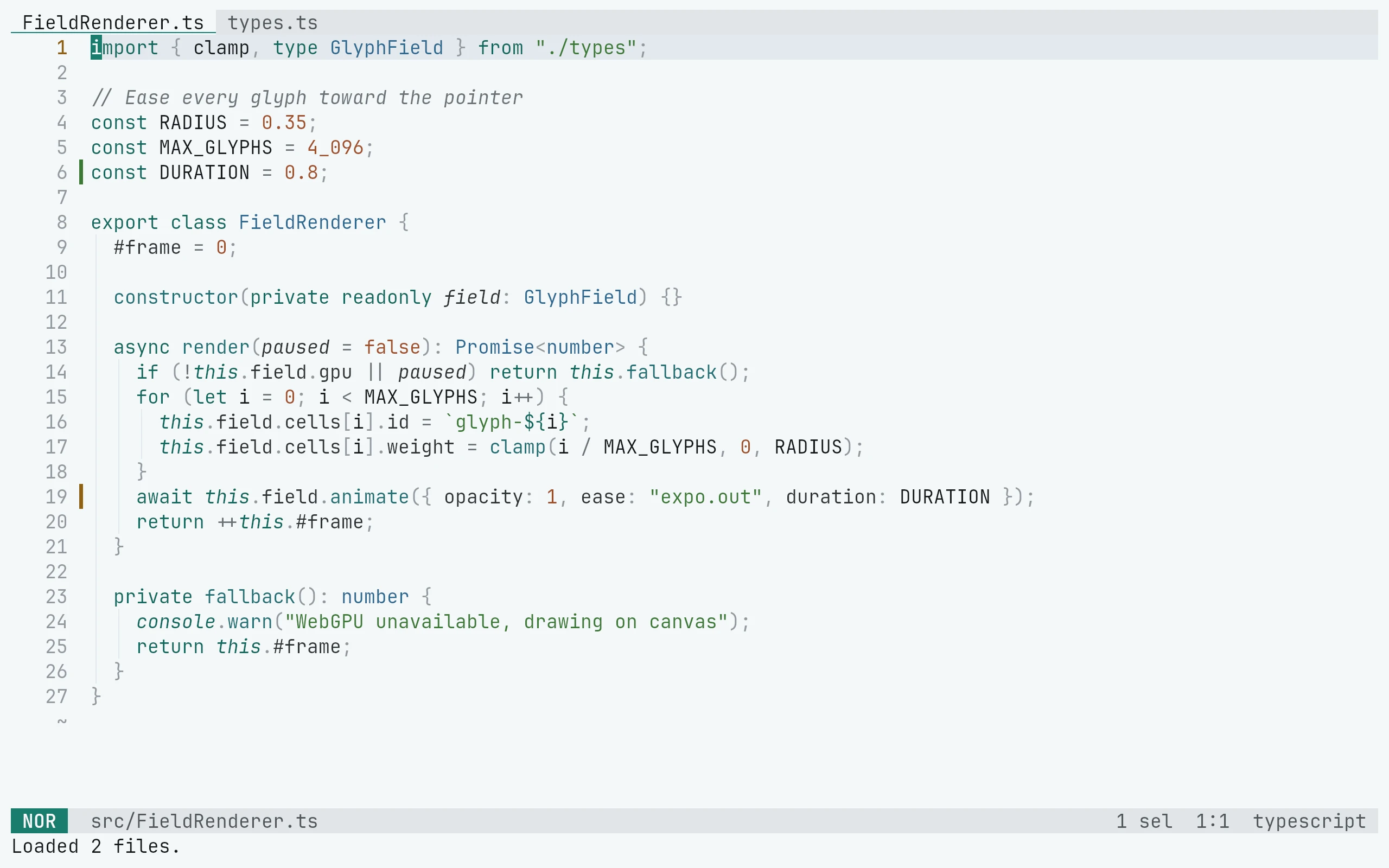
flavor=paper
curl -fsSL --create-dirs -o "${XDG_CONFIG_HOME:-$HOME/.config}/helix/themes/living-code-$flavor.toml" "https://raw.githubusercontent.com/living-code-theme/helix/main/living-code-$flavor.toml"Then set the theme in config.toml:
theme = "living-code-paper"On Windows the folder is %AppData%\helix\themes.
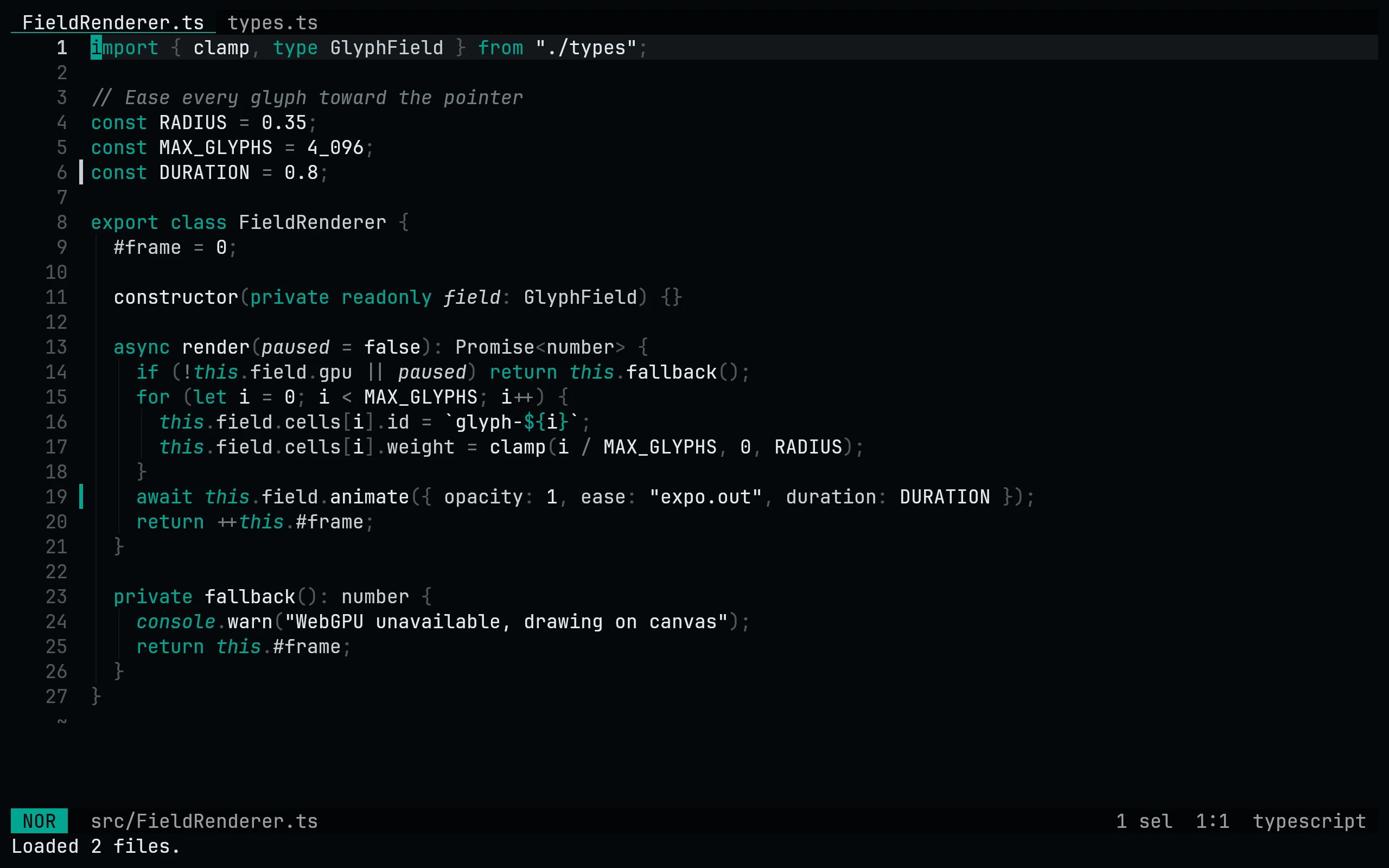
flavor=signal
curl -fsSL --create-dirs -o "${XDG_CONFIG_HOME:-$HOME/.config}/helix/themes/living-code-$flavor.toml" "https://raw.githubusercontent.com/living-code-theme/helix/main/living-code-$flavor.toml"Then set the theme in config.toml:
theme = "living-code-signal"On Windows the folder is %AppData%\helix\themes.
Details
Configuration
See Helix's documentation for application settings and reload behavior. The activation instructions above identify each supported flavor; keep your other application configuration.
Compatibility
This port supplies theme files for Helix, not the application itself. Install the application separately and follow the installation instructions for its supported configuration format.